 Sentinel
Getting started with Sentinel
This guide takes you from download to your first restock alert. It takes about five minutes, and you only do it once.
1Install Sentinel
macOS (Apple silicon): open the downloaded .dmg and drag Sentinel into your Applications folder, then open it from there.
Windows: run the downloaded Sentinel_x64-setup.exe. It installs for everyone on the computer, so Windows may ask for administrator permission.
Sentinel opens on the Dashboard. It runs on your computer, so it only checks for restocks while it’s open and your computer is awake. You don’t need an account.
2Add the stores you shop
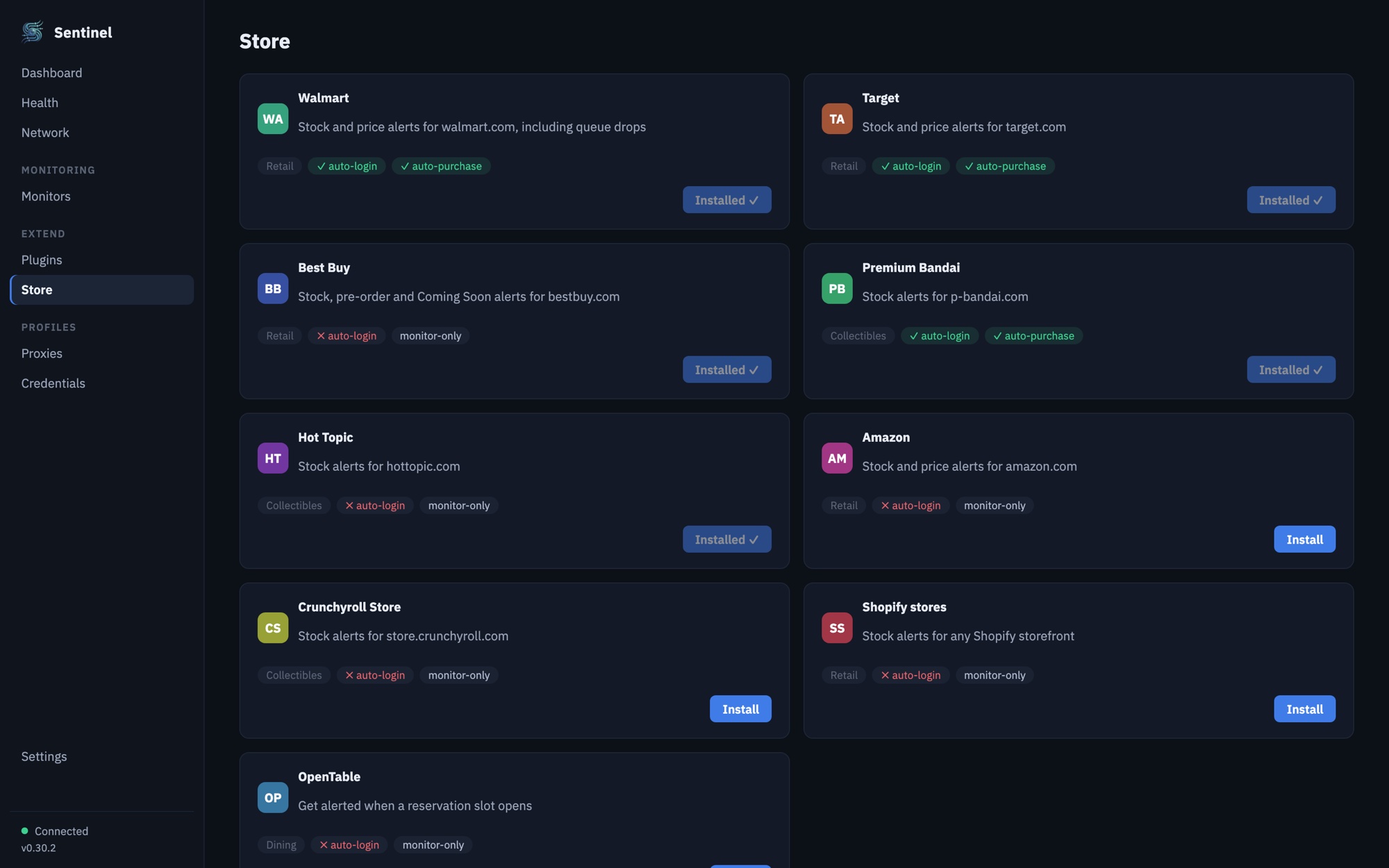
Each store Sentinel supports is a small plugin. Some come installed. To add another, open Store in the sidebar and click Install on the store you want. You can see what you have under Plugins.
3Add products to watch
- On the Dashboard or the Monitors page, click + Add monitors.
- Paste product links, or the store’s item numbers, one per line. You can mix stores in one paste.
- Check the list underneath. Each line shows which store it matched. A line Sentinel can’t match tells you why, usually because that store’s plugin isn’t installed.
- Click Add. The button counts the products it will add.
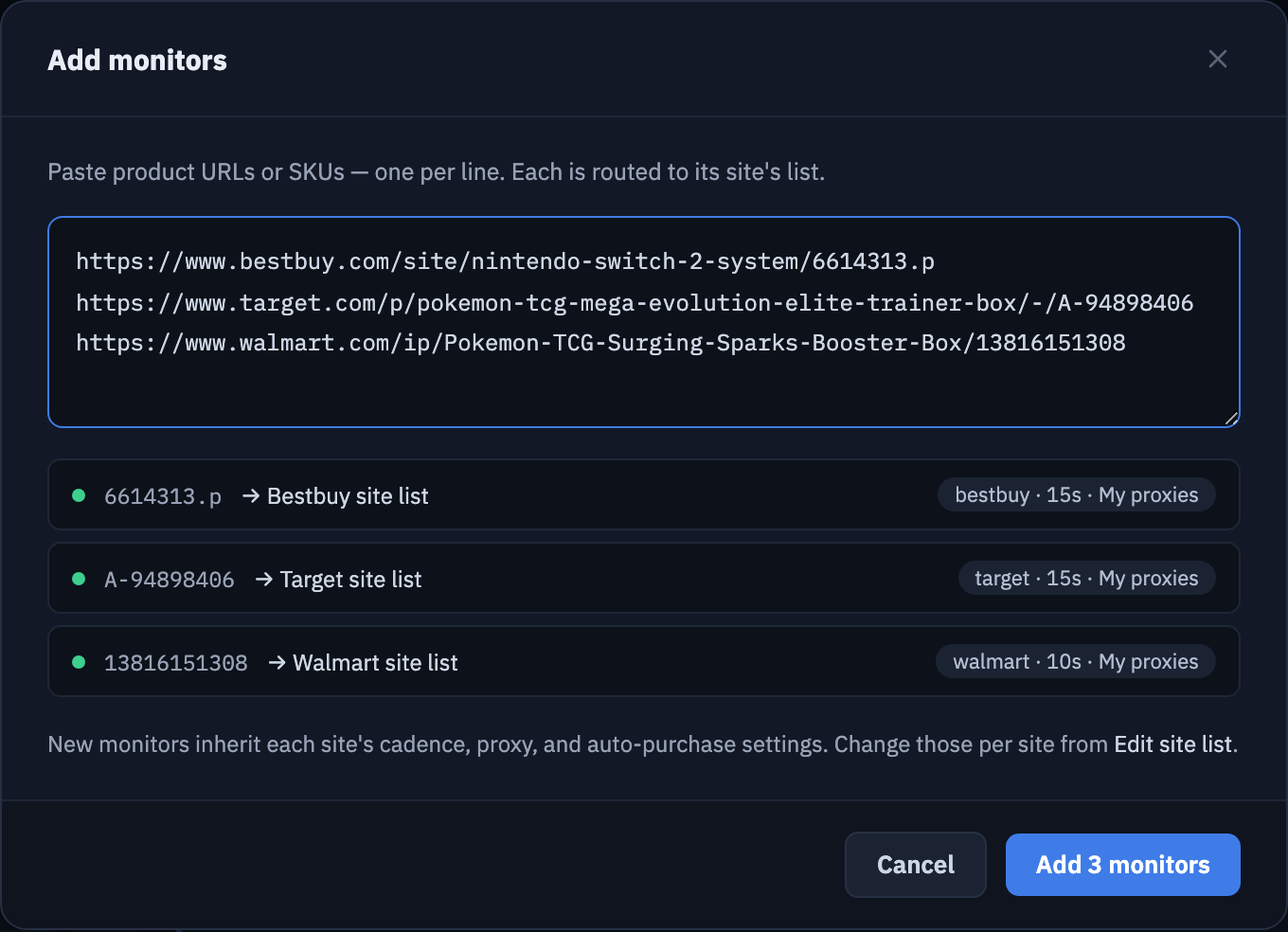
Each product you add is called a monitor. Sentinel starts checking it right away. The free app watches up to 10 products at once.
4Choose how often to check
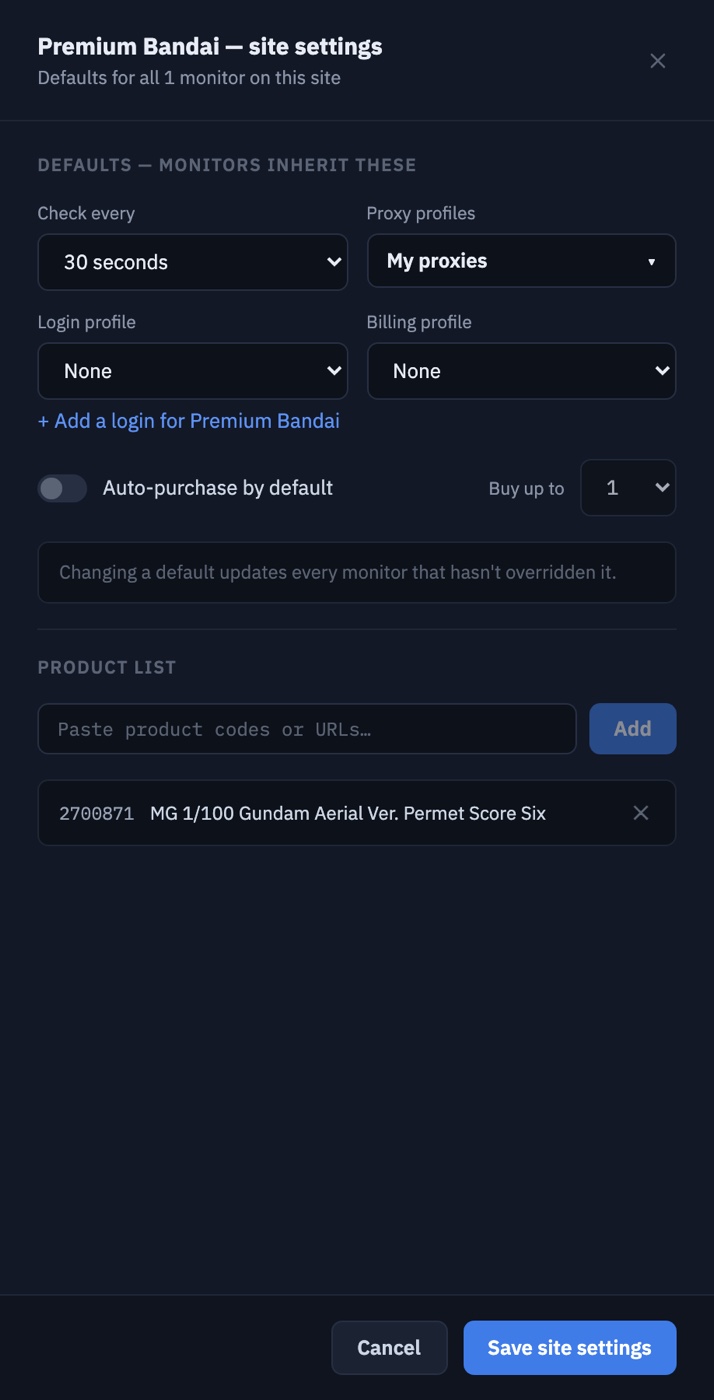
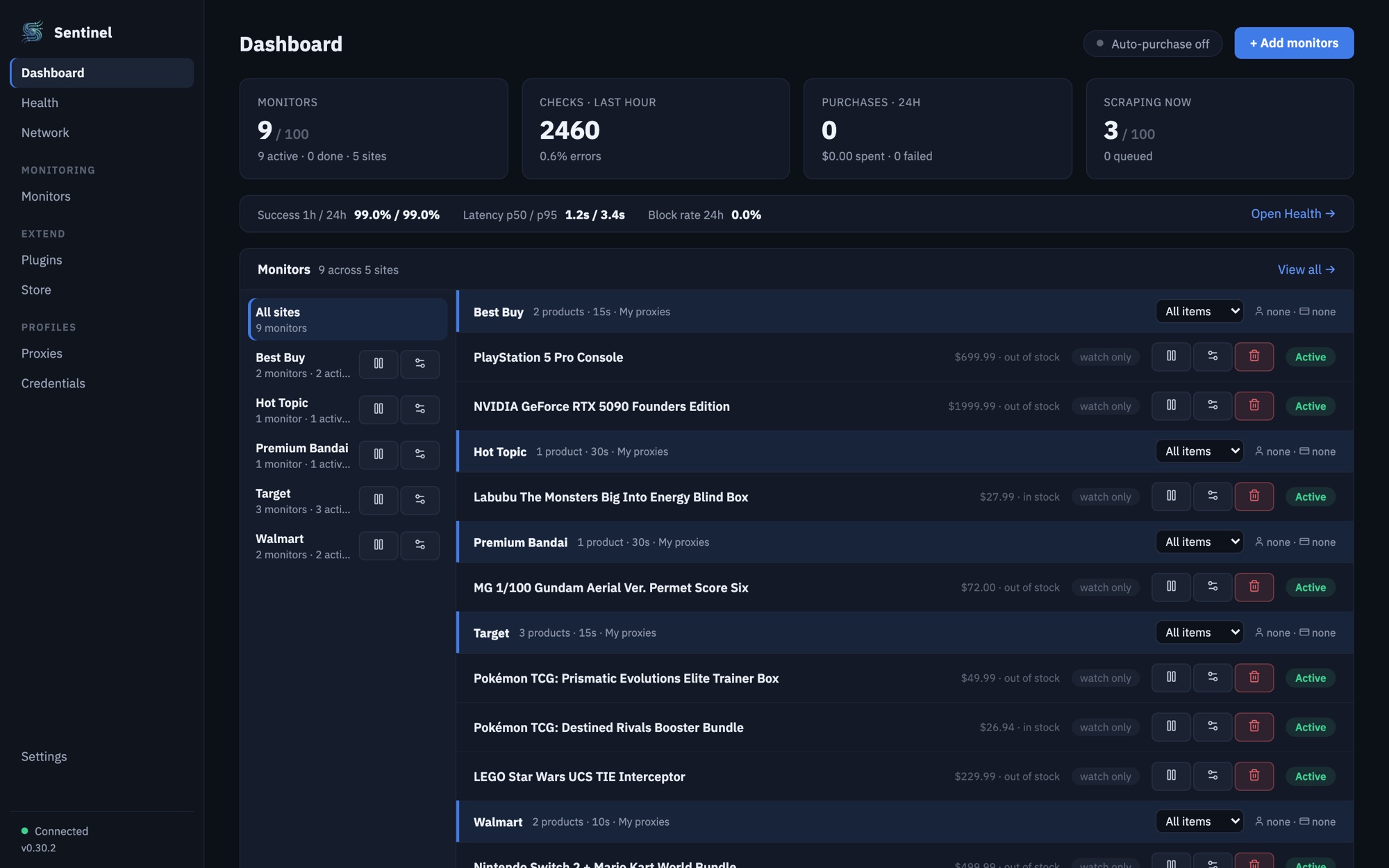
Every store has its own settings, and the products on it follow them. On the Dashboard, click the settings button next to a store’s name to open its site settings.
- Check every sets how often Sentinel looks at each product on that store. In the free app the shortest interval is 30 seconds.
- Proxy profiles lets you route that store’s checks through proxies. See Proxies.
Click Save site settings. Changing a store’s setting updates every product on it that you haven’t set individually. To change a single product, use the settings button on its row.
5Set up alerts
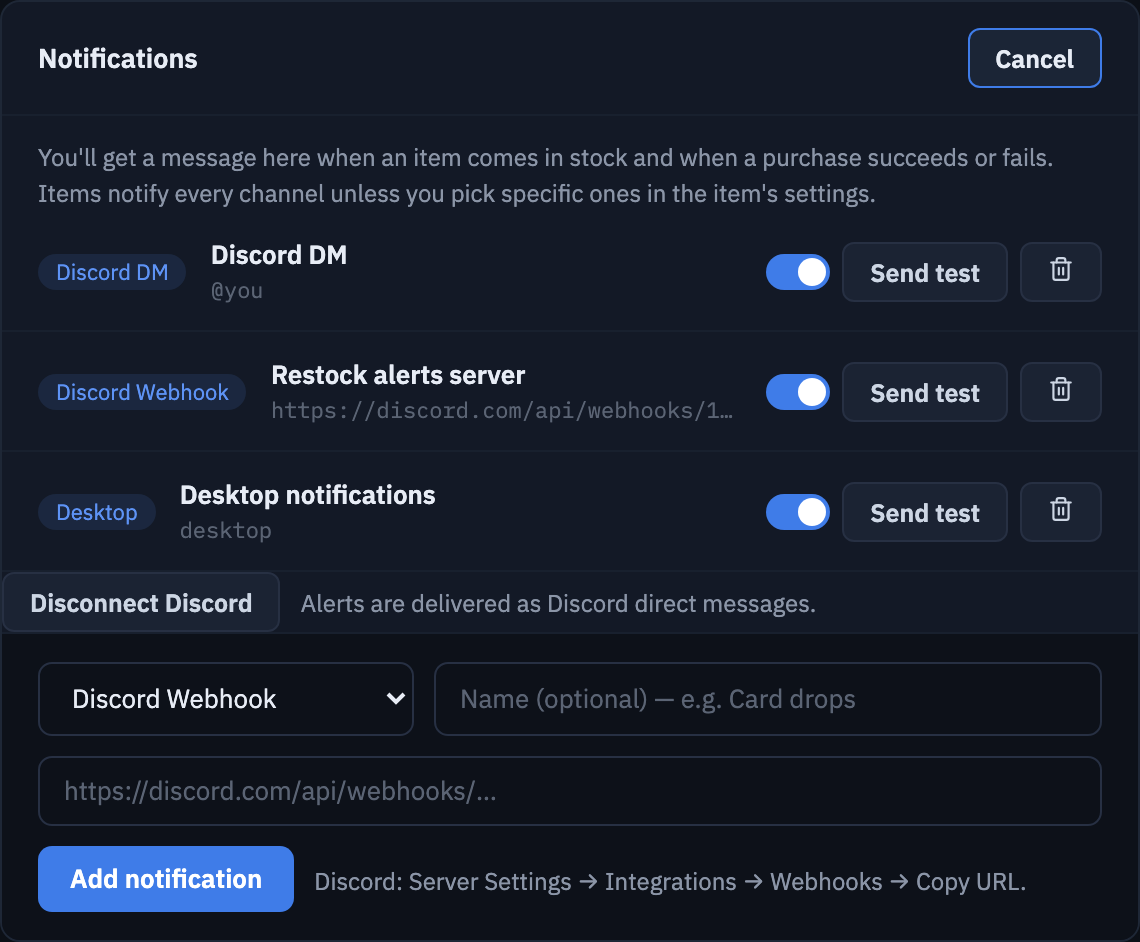
Open Settings and find the Notifications card. You can use any combination of these. Every alert names the product, the store and the price.
Discord direct message
- Click Connect Discord DM. Your browser opens Discord.
- Approve the Sentinel app. Discord sends you back, and the card shows Disconnect Discord once you’re linked.
Alerts now arrive as direct messages from Sentinel, so they reach your phone too.
Discord server webhook
- In Discord, open the server you want alerts in. Go to Server Settings, then Integrations, then Webhooks. Create a webhook, pick the channel, and click Copy Webhook URL.
- In Sentinel, click + Add notification and choose Discord Webhook.
- Give it a name if you like, paste the URL, and click Add notification.
Desktop notification
- Click + Add notification and choose Desktop (this computer).
- Allow notifications when your computer asks.
Clicking a desktop notification opens the product page.
Test each one
Click Send test next to each alert before you rely on it. If a test fails, the reason shows under that row.
6Keep an eye on things
The Dashboard shows every product grouped by store, with its latest price and stock, and an activity feed of recent checks and restocks.
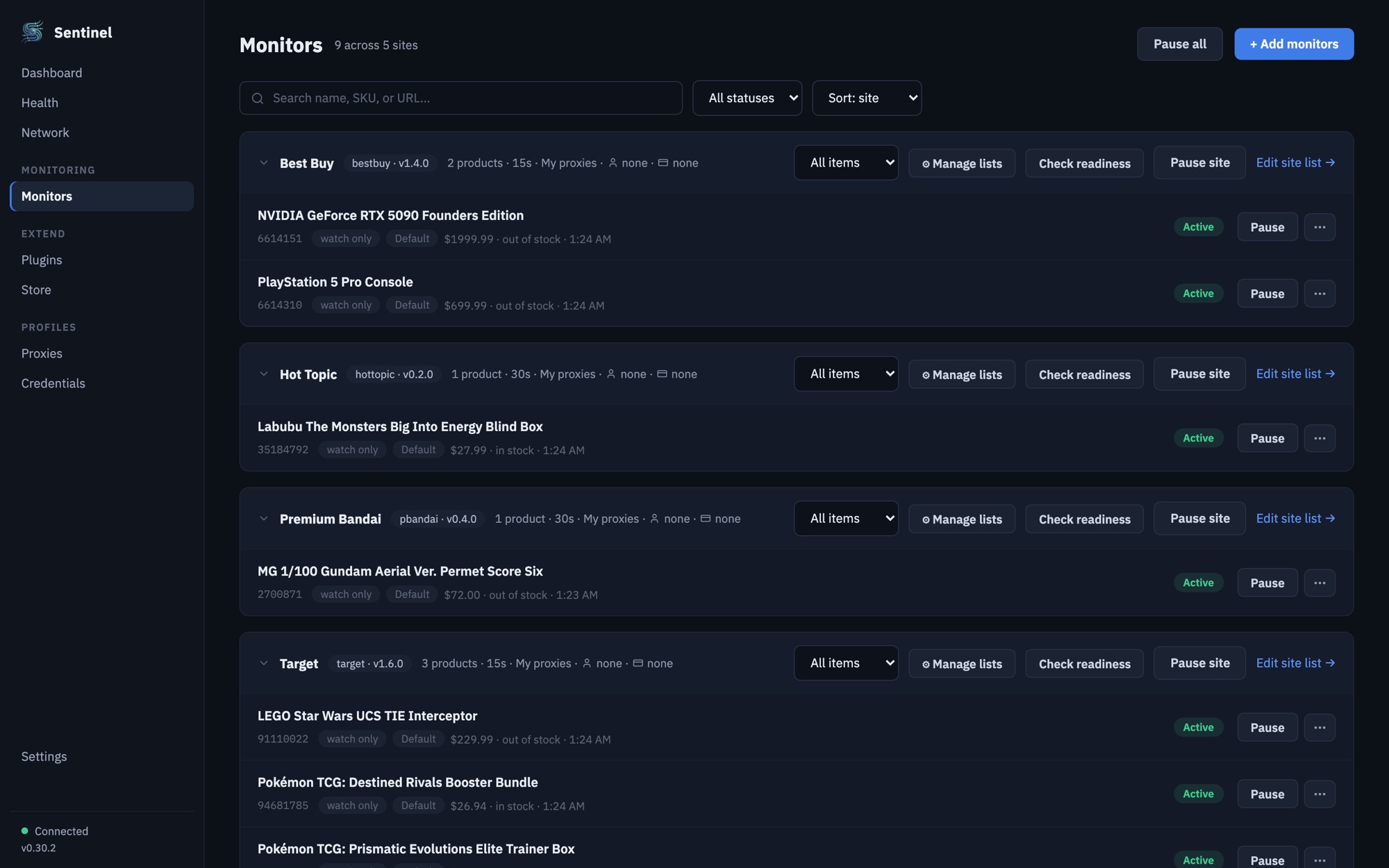
The Monitors page is where you manage the list:
- Search by name, item number or link, and filter by status.
- Pause a single product, Pause site for a whole store, or Pause all to stop everything.
- Remove a product from the menu at the end of its row.
Proxies (optional)
Every check is a visit to the store’s page. A few products checked every 30 seconds adds up to hundreds of visits an hour, all from your home internet address. Stores notice that and respond with slowdowns, captchas or an outright block. Proxies send each visit out through a different address, so your checks keep working and your own address stays in good standing.
You supply the proxies. Sentinel doesn’t sell them and never routes your traffic through us. Buy them from any proxy provider. Residential proxies are least likely to be blocked.
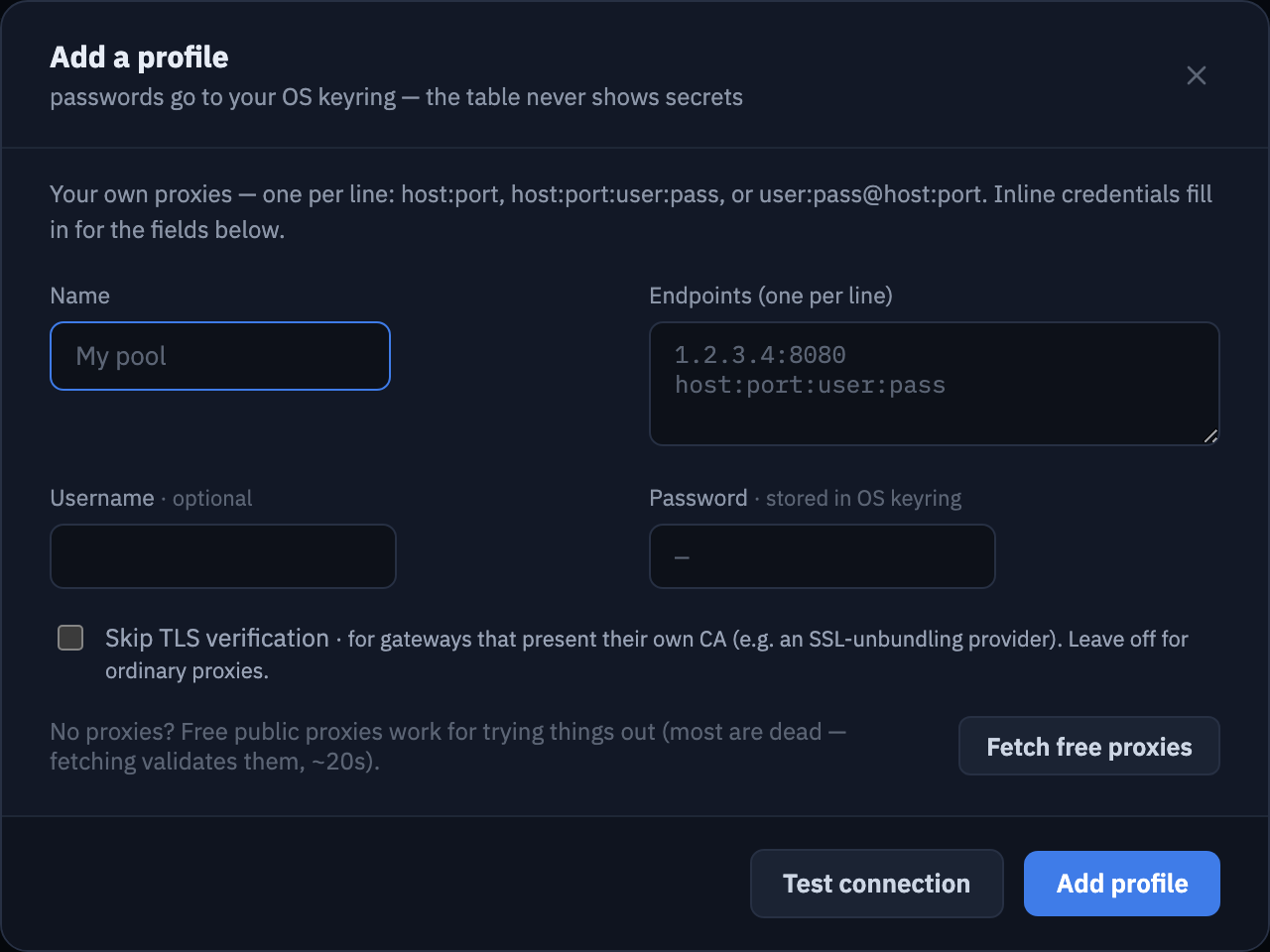
- Open Proxies and click + Add profile.
- Give the profile a name and paste your proxies, one per line, as
host:port,host:port:user:passoruser:pass@host:port. Most providers export one of these. - If your provider gives one username and password for all of them, enter those below. The password is stored in your computer’s keychain.
- Click Test connection, then Add profile.
- In a store’s site settings, choose the profile under Proxy profiles. Sentinel spreads that store’s checks across the addresses in it.
Watching only a few products at a relaxed interval? You can skip proxies and Sentinel uses your own connection. If a store starts blocking you, add them then.
Automatic checkout (coming later)
A future update will let Sentinel buy an item with your own store account the moment it’s back, on stores that support it. It will be off until you turn it on for a store, start in test mode, and respect the price limits you set. Two things about how it works:
- It never buys through a proxy. Proxies are only for checking. Checkout uses your own internet connection, the one the store already knows from your normal shopping.
- Credentials stay in your computer’s keychain. Store logins and card details are kept in macOS Keychain or Windows Credential Manager. They never reach our servers, and backups and exports leave them out.
If something isn’t working
A product shows “blocked”
The store is refusing Sentinel’s visits. Check that product less often, or add a proxy for that store.
A link won’t add
The line under the link says why. Usually the store’s plugin isn’t installed (install it from Store), or you’re already watching that product.
Desktop notifications don’t appear
Check that notifications are allowed for Sentinel in your computer’s settings, and that Focus or Do Not Disturb is off. Then click Send test again.
The Discord test fails
For a webhook, the URL may have been deleted in Discord. Create a new one and add it again. For Discord DM, click Disconnect Discord and connect again.